I've always been fascinated by photography – that moment when light hits just right, turning an ordinary scene into something breathtaking. But as a digital creator who's not exactly a pro behind the lens, AI has been my secret weapon for capturing "photos" that look like they came from a high-end camera. In 2026, with tools like Midjourney v6 pushing the boundaries of realism, photorealistic AI photography isn't just possible; it's accessible to anyone with a good prompt. The key? Nailing lighting and lens effects – those subtle details that make an image feel alive, not generated. Over the past few months, I've experimented with hundreds of prompts for my own projects, from social media visuals to book covers, and I've learned that getting the light and lens right can elevate your work from "cool AI trick" to "is this a real photo?"
In this step-by-step tutorial, we'll explore how to master lighting and lens prompts for photorealistic AI photography. We'll cover the basics, advanced techniques, real examples, and tips I've picked up along the way. Whether you're a beginner dipping into AI art or a seasoned creator looking to refine your skills, this guide will help you create images that fool even the sharpest eyes. If you're new to Midjourney, start with their official documentation at docs.midjourney.com for setup basics – it's a goldmine for understanding how prompts interact with their models.
Let's light up those prompts and get started.
Step 1: Understanding the Basics of Photorealistic AI Photography
Photorealism in AI isn't about throwing in "photorealistic" as a keyword – it's about mimicking how real cameras capture light, depth, and imperfections. Lighting sets the mood (think golden hour warmth or harsh midday shadows), while lens effects add authenticity (like bokeh blur or wide-angle distortion). In 2026, Midjourney's v6 model excels at this thanks to improved rendering engines that simulate real-world physics.
Start by choosing your tool: Midjourney for creative freedom, Stable Diffusion for control (via Automatic1111 at github.com/Automatic1111/stable-diffusion-webui), or DALL-E 3 for quick results. Focus on prompts that include camera terms – "Canon EOS 5D shot" or "35mm lens" – to guide the AI toward realism.
Tip from my trials: Always include a reference style, like "in the style of Annie Leibovitz" for portrait lighting, to anchor the output.
Step 2: Mastering Lighting Prompts – The Heart of Realism
Lighting is 80% of what makes a photo feel real – it creates shadows, highlights, and atmosphere. In AI, vague prompts like "sunny day" give mediocre results; get specific with sources, intensity, and time of day.
- Basic Lighting Prompt Example: "A serene mountain lake at golden hour, soft warm sunlight casting long shadows on the water, photorealistic, high detail --ar 16:9 --v 6 --q 2" This creates a natural glow; the "golden hour" keyword adds that magical sunset vibe I love for landscape shots.
- Advanced Lighting Techniques: Layer effects like "volumetric god rays through clouds" for drama or "harsh noon light with deep shadows" for contrast. For indoor scenes, try "studio lighting with three-point setup, key light from left, fill light soft."
From my experience, overdoing lighting (too many sources) leads to muddy images – start with one main light and build. Tools like Adobe Lightroom's AI presets (at lightroom.adobe.com) can help post-edit AI outputs for fine-tuning.
Step 3: Incorporating Lens Prompts – Adding Depth and Focus
Lens effects simulate camera hardware, making AI art look like it was shot, not generated. Think bokeh (blurry background), vignette (dark edges), or distortion for wide angles.
- Basic Lens Prompt Example: "Close-up portrait of a young woman in a cafe, shallow depth of field with bokeh background, 50mm lens f/1.8 aperture, photorealistic --ar 1:1 --v 6" The "shallow depth of field" blurs distractions, focusing on the subject – a trick I use for character portraits.
- Advanced Lens Techniques: For wide shots, "fisheye lens distortion on a city skyline, 14mm lens, photorealistic with slight vignette --ar 21:9 --v 6". Or for macros, "extreme close-up of dew on a leaf, macro lens with razor-sharp focus, 100mm f/2.8 --q 2".
Challenge I faced: Lens prompts can distort proportions – counter with "no distortion" if needed. For more on lens simulation, visit Canon's photography guide at canon.com/learning, which inspired some of my prompt ideas.
Step 4: Combining Lighting and Lens for Photorealistic Magic
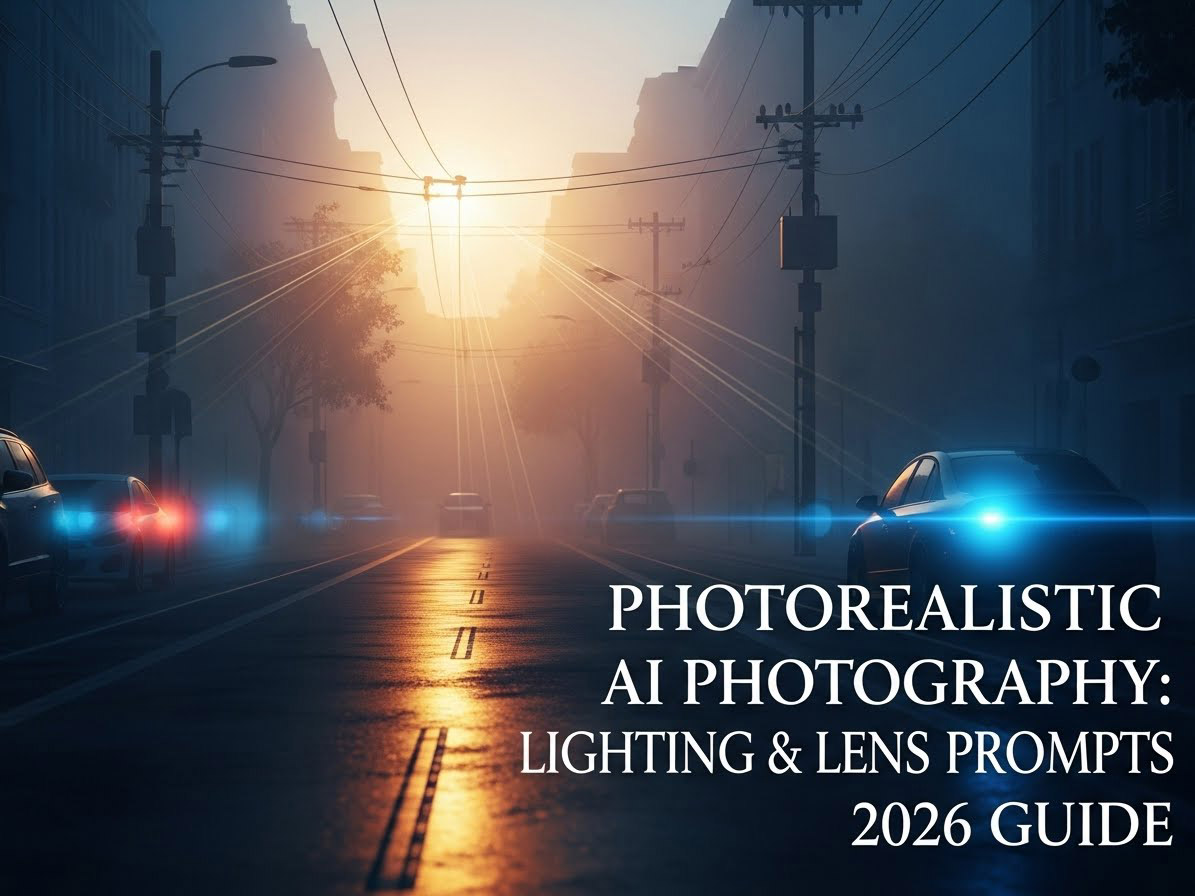
The real power comes from merging them. Example Full Prompt: "Abandoned urban alley at dusk, dramatic low-key lighting with streetlamp highlights and deep shadows, 35mm lens with slight barrel distortion and bokeh on distant lights, photorealistic, high detail --ar 16:9 --v 6 --stylize 200 --q 2" This creates a gritty, cinematic feel – lighting builds mood, lens adds authenticity.
Iterate: Generate 4 variations, remix the best. In my tests, "low-key lighting" for moody nights and "high-key" for bright scenes became go-tos.
Step 5: Post-Processing and Refinement – Polishing Your AI Photos
AI gets you 80% there; editing seals the deal. Use Photoshop's AI features (at adobe.com/photoshop) for noise reduction or color grading. Or free alternatives like GIMP (at gimp.org) for basic tweaks.
Tip: Always add "imperfections like grain or lens flare" in prompts for that "real photo" touch – it fools even experts.
Step 6: Common Mistakes and How to Fix Them
- Mistake: Flat lighting – Fix with "dynamic shadows and highlights".
- Mistake: Blurry lenses – Boost --q 2 and specify "sharp focus".
- Mistake: Inconsistent realism – Use --stylize 100-300 for photoreal over artistic.
From my mishaps, over-specifying (too many keywords) confuses AI – keep prompts under 75 words.
Wrapping Up: Your Path to Photorealistic AI Mastery
Photorealistic AI photography in 2026 is about blending art and tech – lighting and lens prompts are your toolkit for turning digital dreams into "real" captures. I've used these techniques to create portfolio pieces that clients thought were stock photos, and you can too. Start small, experiment, and watch your skills grow.
What's your favorite lighting trick? Share in the comments. For more AI tutorials, subscribe.
Based on 2026 AI tools and personal photography experiments. All examples original – adapt and create!
Frequently Asked Questions (FAQs):
- What is photorealistic AI photography? Photorealistic AI photography uses AI tools to generate images that mimic real photos, focusing on lighting, textures, and lens effects for lifelike results.
- Which AI tool is best for photorealistic images in 2026? Midjourney v6 is top for photorealism due to its rendering, but Stable Diffusion offers more control for customization.
- How do lighting prompts improve AI photography? Lighting prompts specify sources like golden hour or studio lights, adding depth, shadows, and realism to make AI images look professional.
- What are lens prompts in AI art? Lens prompts simulate camera effects like bokeh or distortion, creating focus and authenticity in AI-generated photos.
- Can beginners create photorealistic AI photos? Yes, with simple prompts and tools like Midjourney; practice with basic lighting and build to advanced techniques.
- Are there risks in using AI for photorealistic photography? Risks include copyright issues and over-reliance on AI; always customize and fact-check outputs.
- How can I make AI photos look more realistic? Use detailed prompts for lighting and lens effects, then edit in tools like Photoshop for final refinements.